
Screen Mirroring Z - TV Cast
EVOLLY GLOBALTools
3.21.28K Reviews
- Version
- 2.9.7
- Installs
- 10.00M
- Age Rating
- Everyone
Screenshots
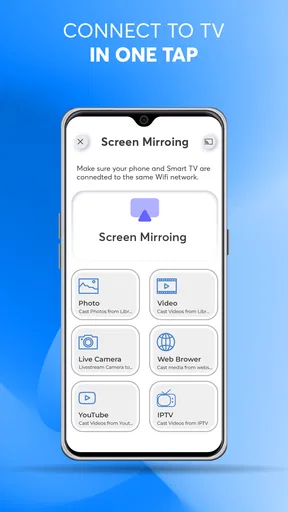
Our Review of Screen Mirroring Z - TV Cast
 Analysis by Appyee
I find screen-mirroring apps most useful when they solve a small, familiar problem: something on my phone would be easier to share if it were on the TV. Screen Mirroring Z - TV Cast is built for that kind of handoff, whether I want to show photos to a roomful of people or put a phone display on a larger screen. It is a free tools app from EVOLLY.APP, rated for Everyone, and its appeal is straightforward: try connecting a phone to a compatible television without making the process feel like a technical project.
Where it fits today
The app is currently at version 2.9.4, and its history goes back to a release on January 14, 2020. That tells me this is an established utility rather than a brand-new experiment, though version numbers alone do not reveal what changed or how the app behaves on every device. It has more than five million installs, with an average rating of 3.3 from around 32,000 ratings and roughly 1,200 written reviews. I read that combination as a reason to set practical expectations: plenty of people have tried it, but wireless mirroring can be inconsistent across home networks and TV setups, so the experience is not universally smooth.
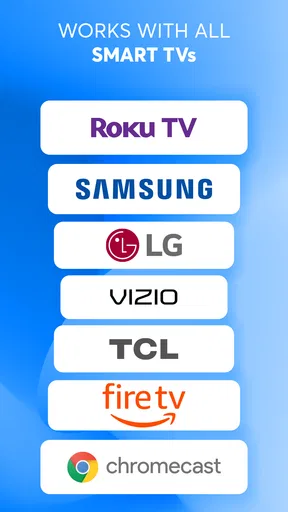
Its stated TV range includes Samsung, Roku, LG, Sony, Vizio, and TCL. That is useful if you own one of those brands, but a brand name is not a guarantee that every model or configuration will connect in the same way. I would treat the app as a convenient option to test with the TV already in your home, not as a reason to buy a television or streaming device. A stable Wi-Fi connection and a compatible TV matter as much as the app itself.
What the version history can—and cannot—tell you
Because the current version is 2.9.4, I can say the app has received numbered iterations since its original release. I cannot responsibly infer from that number alone that a specific feature was added, that an old connection issue was fixed, or that a particular TV model is newly supported. For someone already using the app, the sensible approach is to keep the installed version current through the usual app-store update process and judge the result on their own phone and television.
That distinction matters with casting tools. A version change can improve an app, but the outcome still depends on factors outside it: the phone’s software, the TV’s own casting support, Wi-Fi coverage, and how busy the network is. If mirroring becomes unreliable after a change, I would first check that both devices are on the same home network, close and reopen the app, and reconnect rather than assuming that a version number guarantees a particular result.
Getting Started with Screen Mirroring Z
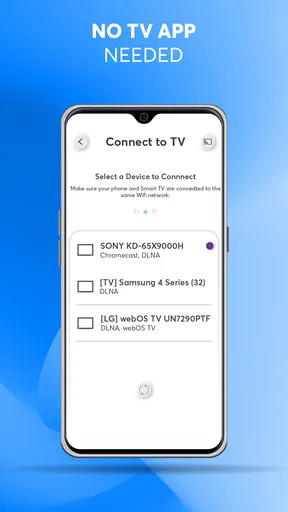
First things first, let’s talk about how to get Screen Mirroring Z - TV Cast up and running. The setup is surprisingly straightforward. You download the app, ensure your TV and mobile device are connected to the same Wi-Fi network, and voilà! The app walks you through every step, making it foolproof even if you're not particularly tech-savvy.
Once you're set up, the app interface is clean and intuitive. You’ll find all the options neatly laid out, making navigation a breeze. Trust me, I’ve tried a few other apps where you need a degree in computer science just to find the settings. Not the case here!
Features Worth Noting
Now, onto the fun stuff – the features. This app isn’t just about mirroring your screen, it’s about doing it with style. Here’s a quick rundown of what caught my eye:
- High-Quality Streaming: The app supports HD streaming, so your videos and images look just as crisp on the big screen as they do on your phone.
- Real-Time Casting: There’s minimal lag, which is crucial when you’re trying to show a video or presentation. No awkward pauses or pixelated glitches.
- Versatile Compatibility: It’s compatible with a variety of smart TVs and streaming devices. Whether you're rocking a Roku, Amazon Fire Stick, or a Chromecast, you're covered.
One of the coolest features is the ability to cast not just videos and photos, but also apps. Yes, you can mirror your favorite apps directly to your TV. Imagine playing games or scrolling through social media on the big screen. It’s a game-changer.
Making a living-room connection less fussy
For me, the best way to judge a mirroring tool is to start with a low-stakes task, not a film night that depends on everything working perfectly. I would first try showing a few still photos, then a short clip, and only then attempt a longer viewing session. That sequence helps separate a basic discovery problem from a streaming-quality problem: if the TV never appears, I would check network matching and TV compatibility; if the connection works but motion looks uneven, the Wi-Fi path is the likelier weak point.
A useful everyday example is sharing pictures after a family gathering. Instead of passing a phone around, I can put a set of images on the TV and let everyone see them at once. For that use, occasional delay matters less than it would during a fast game, and a larger screen makes small details easier to discuss. For a work presentation, I would use the same approach only after testing the connection beforehand, because a tool that is convenient at home is not automatically dependable in a meeting room with a different network.
Another practical trade-off is choosing what to mirror. Showing the whole phone display can be handy when an app has no direct TV option, but it also means notifications or other on-screen activity may appear in front of viewers. Before a group session, I would silence notifications and open the exact content I plan to show. That small bit of preparation makes a live demonstration feel less improvised and avoids exposing unrelated phone activity.
Performance and Experience
In terms of performance, Screen Mirroring Z is pretty impressive. During my testing, the app maintained a stable connection with no noticeable drops in quality. Whether I was streaming a blockbuster movie or a casual YouTube video, the playback was smooth.
One thing I particularly appreciated was the app’s ability to multitask. You can continue using your phone for other tasks while the content is mirrored. This is perfect for those of us who can’t resist the urge to text while watching TV.
Choosing it over built-in casting
I would not automatically reach for a third-party mirroring app when a TV’s own casting feature or a video app’s built-in cast button already does the job. Direct casting is often the better fit for watching a supported video service: the phone can act more like a remote, and the TV handles playback rather than simply displaying the phone’s screen. Full mirroring is more useful when I need to show something that does not offer its own cast option, such as a photo gallery, a page, or an app interface.
A cable is another sensible alternative if the priority is a predictable connection and the phone and display support the required adapter. It avoids relying on Wi-Fi, though it adds hardware and can be less convenient when people are moving around the room. I see Screen Mirroring Z as the middle option: easier to try than arranging a cable, and broader than casting from one individual app, but still dependent on wireless conditions and compatibility.
For games, I would be cautious. A large display can make casual turn-based or visual games more fun to share, but any delay between a touch and the picture can be distracting in a game that needs quick reactions. The same caution applies to live video calls: mirroring may show the call, but it is not a substitute for a dedicated TV conferencing setup, and the phone still has to handle the call and remain positioned sensibly.
User Experience: The Good and The Could-Be-Better
Let’s talk about user experience. Most users will appreciate the straightforward setup and the app's reliability. The lack of intrusive ads is a big win in my book. However, I did notice that some advanced features require a premium subscription. While the basic features are free, unlocking the full potential of the app does come at a cost.
The app is free to install, with in-app purchases ranging from $1.99 to $32.99 per item. I would try the basic experience with my own TV before paying for anything, then decide whether a premium option solves a specific need I actually have. Occasional mirroring does not automatically justify an upgrade; frequent use might make extra capabilities worthwhile, but only if the particular paid feature matches the way I use the app.
Another minor hiccup is that the quality may dip slightly on older devices. But let’s be honest, this is a common issue with any tech that relies on Wi-Fi streaming, so it’s not a deal-breaker.
Who will get the most from it
I think this app makes the most sense for someone who regularly wants to put phone content on a compatible TV but does not want to buy extra hardware just to share a screen. It is especially appealing for casual home use: displaying travel photos, showing a recipe page while cooking, or letting friends see a clip without crowding around one handset. Its Everyone age rating also makes it suitable for a broad household audience, though the content shown still depends on what is on the phone.
I would skip it if I need guaranteed low-latency gaming, a dependable presentation connection in a professional setting, or a replacement for a TV’s native streaming apps. In those cases, a wired connection, built-in casting, or direct playback on the television may be a better match. I would also be wary if my TV is not among the supported brands or if I cannot put the phone and TV on the same Wi-Fi network; checking that basic setup first is more useful than assuming an app can bridge every network restriction.
Small checks that can save a failed cast
If the TV does not show up, I would check the simple things in order: confirm both devices are using the same Wi-Fi network, verify the television is awake and ready for a connection, and reopen the app before trying again. In homes with separate guest and main networks, two devices can appear to be on Wi-Fi while still being unable to see each other. Moving closer to the router can also help distinguish weak coverage from a compatibility issue.
If a connection starts but the image stutters, I would pause other heavy network activity and test a short video again before changing several settings at once. If the picture is fine but the sound or timing feels off, I would try a still image or a different clip to see whether the problem is tied to one piece of content. These are not magic fixes, but they make troubleshooting more deliberate and help avoid blaming the app for a network bottleneck.
Before relying on mirroring away from home, I would check the local network rather than expect the setup to behave like it does in the living room. Hotels, offices, and shared networks may restrict device discovery or place devices on separate connections. For a one-off demonstration, bringing a cable or using the TV’s own supported method as a backup is a more responsible plan than assuming a phone app will work everywhere.
What I would keep an eye on
For existing users, the meaningful question is not whether the version number rises, but whether the app continues to connect reliably with the particular phone and television they own. I would pay attention to whether updates improve discovery, stability, or ease of reconnecting, while avoiding assumptions that an update has changed a feature unless the app itself makes that clear. A familiar setup that works well is a good reason to keep using it; a persistent connection problem is a reason to compare it with the TV’s built-in options instead.
The overall rating suggests a mixed response rather than universal approval, so I would approach it as a practical utility to test, not a guaranteed fix for every casting problem. That is a fair standard for an app whose main job depends on several devices and a home network cooperating. Start with the free use, test the exact content you care about, and only consider an in-app purchase if you can identify a concrete benefit for your routine.
Final Thoughts
All in all, Screen Mirroring Z - TV Cast is a solid choice for anyone looking to amplify their mobile viewing experience. Whether you’re hosting a movie night or just want to browse your photos on a larger screen, this app delivers. With its combination of ease-of-use, quality streaming, and versatility, it’s hard not to recommend it.
So, if you’re ready to take your screen mirroring game to the next level, give Screen Mirroring Z a try. It might just become your go-to app for all things casting. Trust me, your eyes—and your friends—will thank you!
Verdict
Strengths of Screen Mirroring Z - TV Cast
- Easy setup and intuitive interface.
- Supports multiple devices seamlessly.
- High-quality video streaming.
- No additional hardware required.
- Frequent updates and improvements.
Limitations of Screen Mirroring Z - TV Cast
- Occasional connectivity issues.
- Ads can be intrusive at times.
- Limited free features.
- Requires strong Wi-Fi for best performance.
- Not compatible with all TV models.
Similar Picks in This Category
View All
Google LLC4.0

Gboard - the Google Keyboard
Google LLC4.5

Google Play services
Google LLC4.3

Google Play Store
Google LLC4.9

Files by Google
Google LLC4.5

SHAREit: Transfer, Share Files
Smart Media4U Technology Pte.Ltd.4.3
Frequently Asked Questions
What devices are compatible with Screen Mirroring Z - TV Cast?
Screen Mirroring Z - TV Cast is compatible with a wide range of devices, including most smart TVs, streaming devices like Roku and Chromecast, and gaming consoles. It supports both Android and iOS platforms, ensuring ease of use across different devices. Always check the app's compatibility list for specific models.
Is there a delay when using Screen Mirroring Z - TV Cast?
While Screen Mirroring Z - TV Cast is designed to minimize latency, some users may experience a slight delay depending on their network speed and device performance. Ensuring a strong Wi-Fi connection and keeping both devices on the same network can help reduce any potential lag.
Does Screen Mirroring Z - TV Cast require an internet connection?
Yes, an internet connection is required for Screen Mirroring Z - TV Cast to function properly. Both your mobile device and the receiving device need to be connected to the same Wi-Fi network to enable smooth and seamless mirroring of your screen.
Are there any subscription fees or in-app purchases in Screen Mirroring Z - TV Cast?
Screen Mirroring Z - TV Cast offers a free version with basic features. However, for an enhanced experience with additional features, you may consider their premium subscription. The premium version typically includes benefits like ad-free usage and improved streaming quality.
How secure is Screen Mirroring Z - TV Cast for sharing content?
Screen Mirroring Z - TV Cast prioritizes user privacy and security. The app uses secure connections to ensure your data remains protected during transmission. It's always recommended to use trusted networks and keep your app updated to the latest version for optimal security.
